TYNDO

Native productivity workspace

A workspace for tasks, visual plans, files and progress.

Discover TYNDO: tasks, NEXMAP visual planning, VAULT files, timelines, task metrics and read-only Git activity on Mac, with a local-first security design.

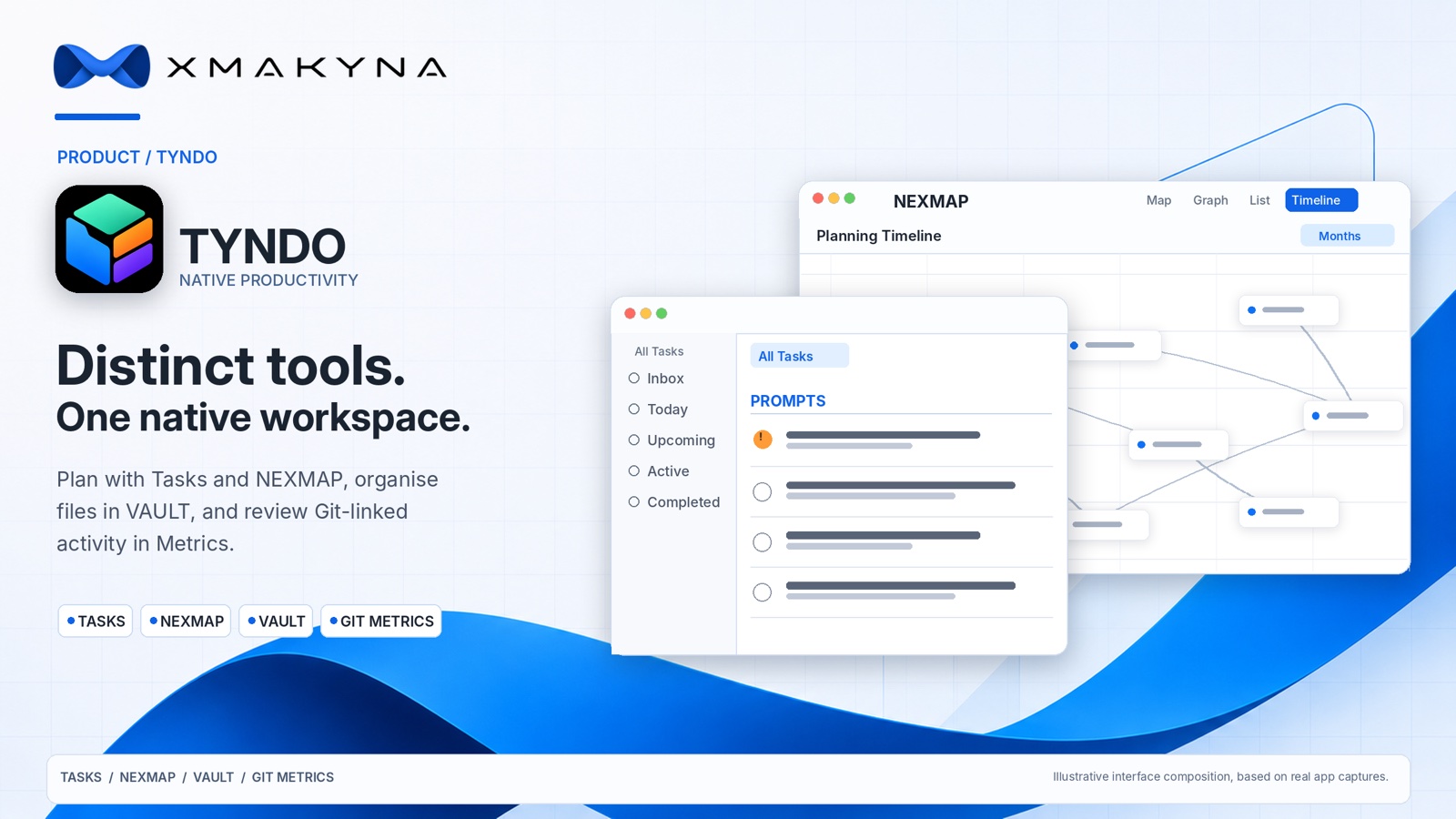
Supplied TYNDO editorial illustration; interface composition is illustrative.

In development for Mac, iPhone and iPad. Public availability, final feature packaging and release details will be confirmed separately.

TYNDO combines purpose-built tools for different kinds of work within one native application. Its task system, NEXMAP planning environment, Timeline, VAULT file workspace and Metrics each have their own depth and purpose. They work together where it is useful, without reducing planning, files or analysis to extras on a task list.

Five specialist tools. One TYNDO.

These are substantial parts of the application, not simply five ways to display the same information. You can work deeply within each one, while moving between tasks, plans, schedules, files and progress reporting when your work calls for it.

TYNDO: tasks and lists

Make space for both a single reminder and a more involved project. Organise tasks into personal lists, attach notes or files, set priorities and tags, and create subtasks when work needs more structure. Dedicated task sections include Inbox, Today, Upcoming, Active, Completed and other useful states. Reusable lists help with checklists that come round again.

Due dates and reminders are separate choices. Use a deadline to say when something should be done, and an optional notification when you want to be reminded. Apple Calendar integration is available as a separate, permission-based option for dated tasks.

NEXMAP: visual planning and dependencies

When a list no longer shows the whole shape of the work, open NEXMAP. Create a map of connected nodes, link steps that depend on one another and organise the result visually. Work with a map in Graph, List or Planning Timeline modes. The planning timeline supports day, week and month scales without changing where nodes sit on the graph.

NEXMAP also brings tasks and plans closer together: eligible TYNDO lists can be represented as maps, while managed lists reflect work owned by a NEXMAP plan. Text Commands provide shortcuts for specific actions such as connecting nodes, setting dependencies or arranging a graph. They are defined editing commands, not a general-purpose AI assistant.

NEXMAP is a dedicated planning tool for the relationships and dependencies within a project, not merely another presentation of the task list. Its different planning modes serve the same underlying map.

Timeline: what is due and when

TYNDO's main Timeline provides its own scheduling and deadline-focused workspace for dated tasks, organised by Year, Month, Week or Day. It is distinct from the NEXMAP Planning Timeline, which follows the nodes and dependencies of an individual visual plan. Each serves a different part of the work while remaining within TYNDO.

VAULT: files where you need them

VAULT is TYNDO's file and folder workspace. Use App Documents or add a folder location you have explicitly selected. Browse and search within that location, import files, make folders, preview documents and edit supported text files. On Mac, the workspace also offers a dedicated preview-and-edit presentation for selected content.

The chosen folder remains yours. VAULT does not grant itself universal access to the device, and some file operations act on the original file, not a private copy. If a folder's permission is unavailable after a move or restore, TYNDO asks you to authorise it again. A VAULT location can also be associated with the work in a TYNDO list.

Important boundary: VAULT file contents are not automatically copied into TYNDO's iCloud Sync or its full-workspace backup. Keep separate backups of important VAULT files, including any files in external locations.

Metrics: understand progress

Metrics is a dedicated reporting and analysis tool for task activity, project progress, throughput, deadlines and cycle times. Its reports can help make a busy collection of lists easier to understand. They describe recorded activity; they are not surveillance or a measurement of hours spent working.

On Mac, an optional advanced Git Metrics capability reads activity from user-linked local Git repositories. It can present commit and change information alongside relevant project and task information. A separate Standardised Activity Model (SAM) can provide illustrative scenarios based on recorded code changes; these are not measured working time, earnings, productivity or actual AI cost savings. Git Metrics is a Mac feature: iPhone and iPad do not scan Git repositories, and verified delivery of Mac Git results to those devices is not yet provided.

How TYNDO handles Git repositories safely

Git repositories can contain large histories and complex data structures. TYNDO treats that as a reason to narrow the analysis, not to seek more permissions.

  • You choose the repositories. TYNDO requests access to the local folder you select; it does not search an entire Mac for repositories.
  • Analysis is read-only. The Git processing path reads supported local repository metadata and change information. It does not modify code, commit changes, checkout branches, clone, fetch, push, pull or run a Git command-line process.
  • Processing is isolated. Git parsing uses a separately sandboxed macOS helper, rather than bringing the repository-reading library into the main application process. The app receives bounded results for display.
  • Results are checked. Unexpected repository layouts, inaccessible folders and incomplete or invalid responses are treated as problems to report, not silently converted into confident charts. Previously valid results are not overwritten by an invalid refresh.
  • Local activity stays local. Git repository permissions and locally collected Git results are device-specific and are not included in TYNDO's optional iCloud Sync.

This is a description of the implemented security design and intended behaviour of the development build, not a claim that all possible repository content has been proved safe.

Security and isolation by design

TYNDO's security design starts with a basic distinction: the main application needs to organise and display your work, but it does not need to parse every unfamiliar file format or process every repository history within the same component.

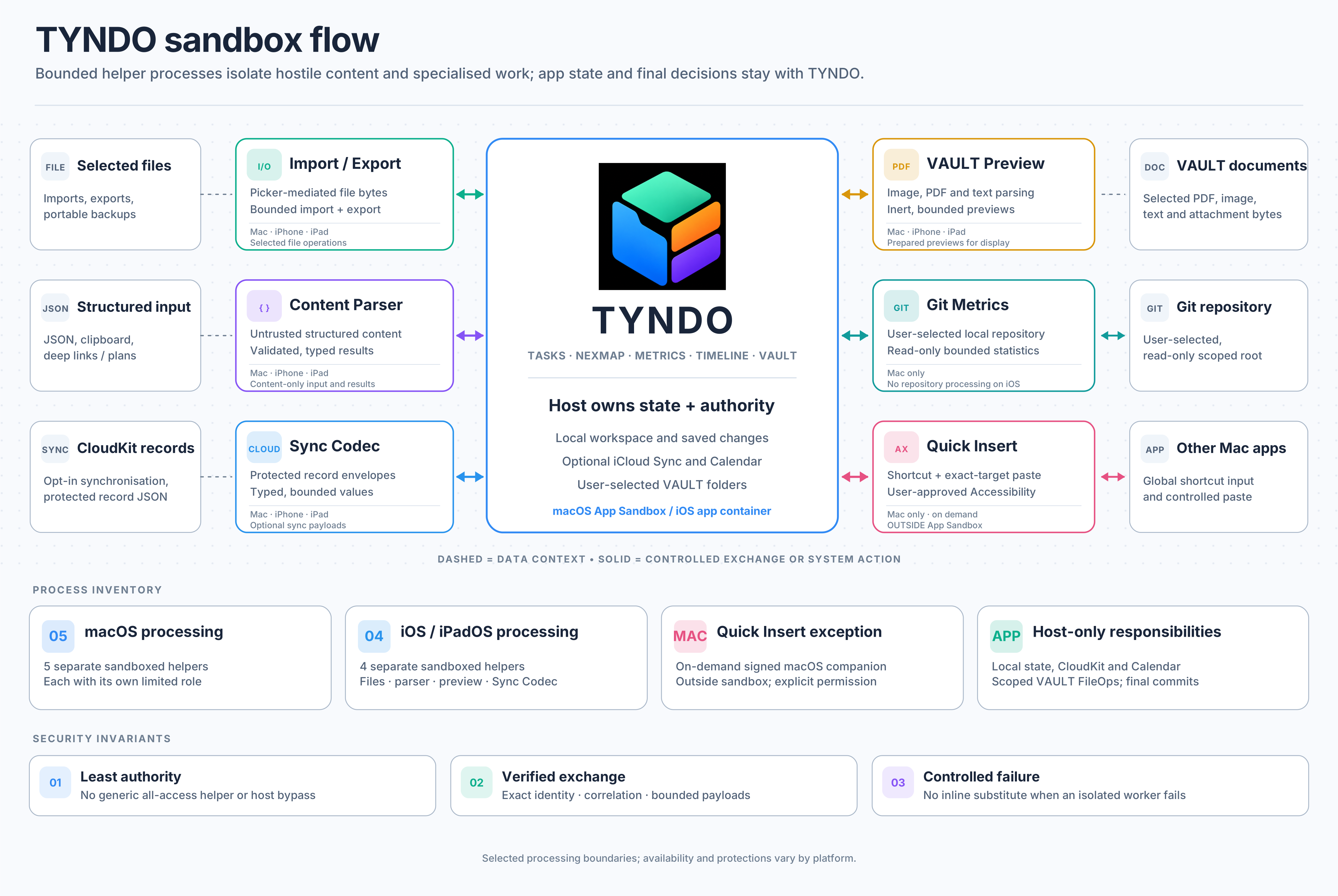
TYNDO sandbox flow

TYNDO controls app state and selected folder access. Separate helpers handle imports, parsing, sync payloads, previews and Mac Git metrics. Quick Insert is a separate Mac companion outside App Sandbox with explicit permission.TYNDO controls app state and selected folder access. Separate helpers handle imports, parsing, sync payloads, previews and Mac Git metrics. Quick Insert is a separate Mac companion outside App Sandbox with explicit permission.
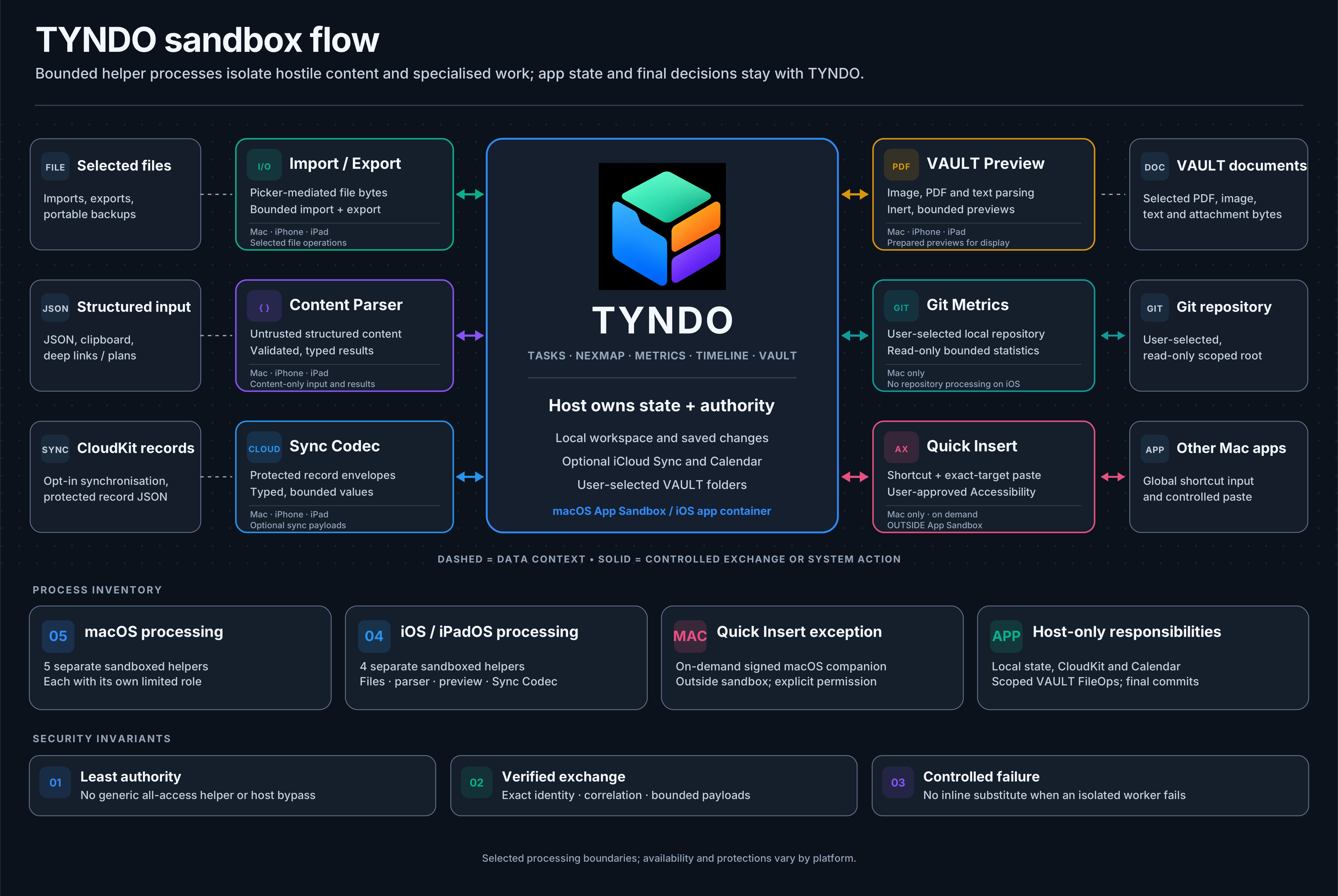
Selected work uses bounded helpers; app state and final decisions remain with TYNDO. Quick Insert is a separate permission-based Mac companion outside App Sandbox. Platform availability differs. Open the diagram to view it at full size.

Application sandbox and user permissions

TYNDO uses the operating system's application sandbox. External folders are selected and authorised by the user, with access kept within the available platform permission model. Optional Calendar integration and macOS Quick Insert request their own permissions where needed. Permission to access one folder is not blanket permission to reach every file on a device.

Separate processing for untrusted material

Selected operations are handled through narrowly defined, isolated helpers. Depending on platform and operation, these cover file import/export, structured-content parsing, VAULT document previews and Git repository analysis. PDF and image previews are prepared away from the main app and returned in forms intended for safe display. The main app checks the result before accepting it.

The architectural principle is to keep untrusted input, resource access and app state changes separate where practical. Inputs and results have bounded formats and checks, and helper failure does not justify silently falling back to unrestricted parsing inside the main app.

Memory and process protections

TYNDO is developed using Swift 6's stricter concurrency and safety tooling, together with Apple platform security controls and sandbox boundaries. The Security Features section can report available operating-system protection readings for the app and supported helpers. A reading may be active, inactive or unavailable; an unavailable reading is not proof of either protection or failure. Different devices and operating-system versions may expose different evidence.

Quick Insert is a separate permission choice on Mac

On Mac, Quick Insert can find a task and insert its text in another application. Automatic insertion uses a separate on-demand companion and requires explicit macOS Accessibility permission; manual Copy remains available without that permission. Text passed through Quick Insert uses the shared macOS clipboard, so it is not a private channel for passwords or other secrets. macOS Secure Keyboard Entry may prevent global shortcuts from operating in Terminal; manual copying remains an alternative without disabling that protection. This feature is not an invitation for TYNDO's main app to abandon its sandbox.

What this means: TYNDO aims to make security boundaries understandable and deliberately narrow. No software can promise that every bug or harmful file has been eliminated, and a technical architecture is not a substitute for testing the final signed release.

Your data, sync and recovery

Local-first by default

Tasks, lists, plans and supported work data are stored locally. iCloud Sync is optional and off by default. If enabled on each device, it is designed to move supported tasks, lists, NEXMAP maps and related information, and available original task attachments through the user's private Apple iCloud database. Apple account availability and sync status can affect when changes arrive.

Not everything belongs in that sync. VAULT files and contents, local Git metrics, repository access permissions and device-specific Calendar identifiers remain outside it. Access to external folders must be established separately where needed.

Backups are separate from synchronisation

TYNDO supports a full workspace backup and import/restore flow. A TYNDO backup can include tasks, lists, NEXMAP data and task attachments, but not the actual contents of VAULT folders. This is intentional: a workspace snapshot is not a replacement for a backup of every file on the Mac or device.

Restoring a backup may also require you to select external folders or Git repositories again because a saved path is not an operating-system permission grant. The goal is to make these boundaries clear, not to hide them until something goes wrong.

Platforms and availability

Platforms

Mac, iPhone and iPad

Main areas

TYNDO Tasks, NEXMAP, Metrics, Timeline and VAULT

Planning

Tasks and subtasks, graph/list planning modes, map dependencies and planning timelines

Files

User-selected folder locations, previews and supported text editing

Git Metrics

Read-only Mac repository analysis; advanced reporting under the Premium feature design

Data

Local-first, with optional supported iCloud synchronisation

Security approach

App sandbox, user-granted file access and separated processing for selected untrusted work

Status

In development; no public release date or App Store availability announcement

TYNDO is in development. The exact launch build, plan entitlements, final availability and purchasing information will be confirmed at release. This page describes the product direction and evidenced development capabilities; it does not claim final independent release acceptance, certification or blanket security guarantees.

From the blog: TYNDO in development: tasks, visual plans, files and progress