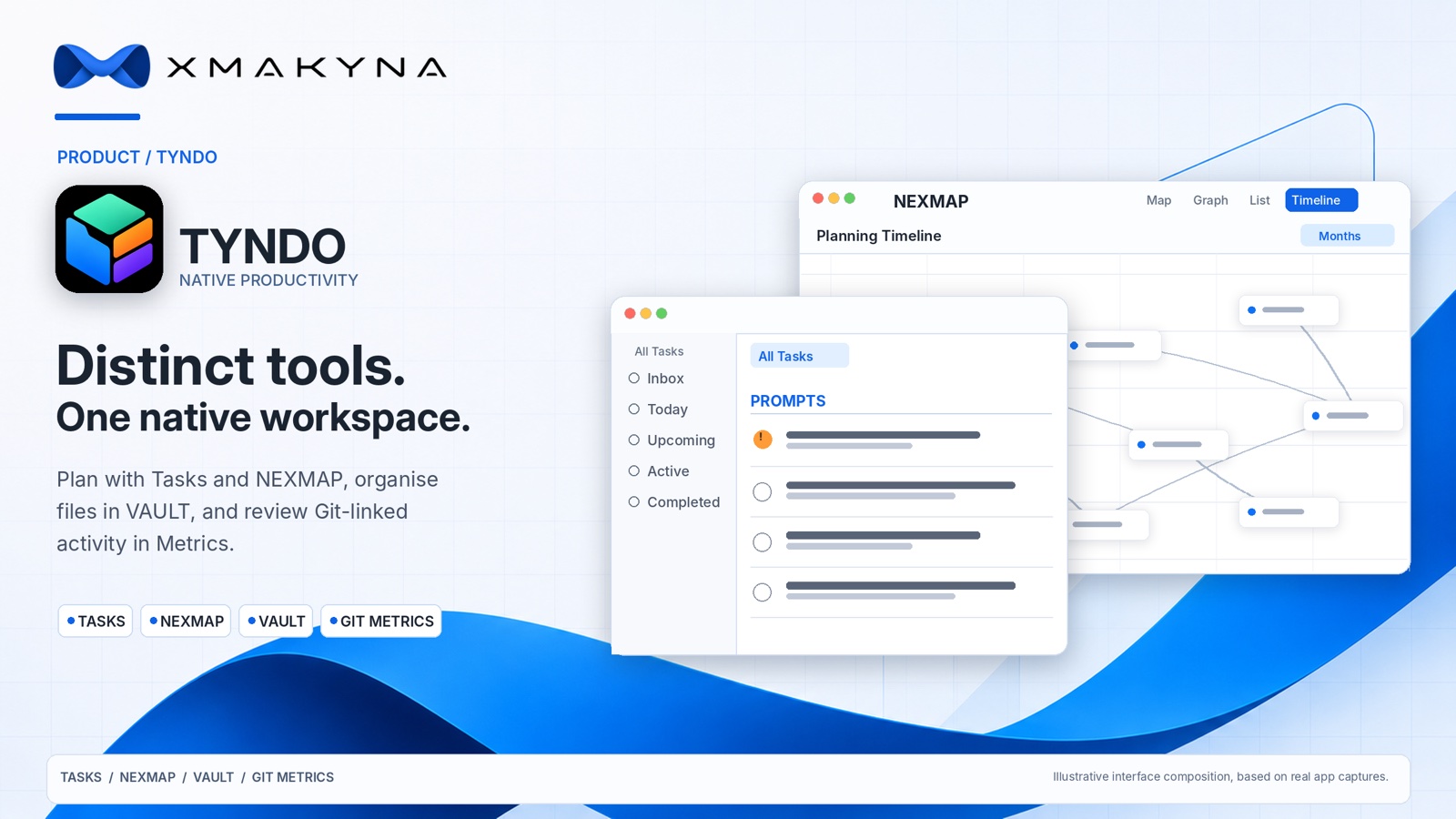
These are substantial parts of the application, not simply five ways to display the same information. You can work deeply within each one, while moving between tasks, plans, schedules, files and progress reporting when your work calls for it.
TYNDO: tasks and lists
Make space for both a single reminder and a more involved project. Organise tasks into personal lists, attach notes or files, set priorities and tags, and create subtasks when work needs more structure. Dedicated task sections include Inbox, Today, Upcoming, Active, Completed and other useful states. Reusable lists help with checklists that come round again.
Due dates and reminders are separate choices. Use a deadline to say when something should be done, and an optional notification when you want to be reminded. Apple Calendar integration is available as a separate, permission-based option for dated tasks.
NEXMAP: visual planning and dependencies
When a list no longer shows the whole shape of the work, open NEXMAP. Create a map of connected nodes, link steps that depend on one another and organise the result visually. Work with a map in Graph, List or Planning Timeline modes. The planning timeline supports day, week and month scales without changing where nodes sit on the graph.
NEXMAP also brings tasks and plans closer together: eligible TYNDO lists can be represented as maps, while managed lists reflect work owned by a NEXMAP plan. Text Commands provide shortcuts for specific actions such as connecting nodes, setting dependencies or arranging a graph. They are defined editing commands, not a general-purpose AI assistant.
NEXMAP is a dedicated planning tool for the relationships and dependencies within a project, not merely another presentation of the task list. Its different planning modes serve the same underlying map.
Timeline: what is due and when
TYNDO's main Timeline provides its own scheduling and deadline-focused workspace for dated tasks, organised by Year, Month, Week or Day. It is distinct from the NEXMAP Planning Timeline, which follows the nodes and dependencies of an individual visual plan. Each serves a different part of the work while remaining within TYNDO.
VAULT: files where you need them
VAULT is TYNDO's file and folder workspace. Use App Documents or add a folder location you have explicitly selected. Browse and search within that location, import files, make folders, preview documents and edit supported text files. On Mac, the workspace also offers a dedicated preview-and-edit presentation for selected content.
The chosen folder remains yours. VAULT does not grant itself universal access to the device, and some file operations act on the original file, not a private copy. If a folder's permission is unavailable after a move or restore, TYNDO asks you to authorise it again. A VAULT location can also be associated with the work in a TYNDO list.
Important boundary: VAULT file contents are not automatically copied into TYNDO's iCloud Sync or its full-workspace backup. Keep separate backups of important VAULT files, including any files in external locations.
Metrics: understand progress
Metrics is a dedicated reporting and analysis tool for task activity, project progress, throughput, deadlines and cycle times. Its reports can help make a busy collection of lists easier to understand. They describe recorded activity; they are not surveillance or a measurement of hours spent working.
On Mac, an optional advanced Git Metrics capability reads activity from user-linked local Git repositories. It can present commit and change information alongside relevant project and task information. A separate Standardised Activity Model (SAM) can provide illustrative scenarios based on recorded code changes; these are not measured working time, earnings, productivity or actual AI cost savings. Git Metrics is a Mac feature: iPhone and iPad do not scan Git repositories, and verified delivery of Mac Git results to those devices is not yet provided.